Prerequisite: This is Part 2 of the DomJudge Docker series. If you haven’t set up DomJudge yet, start with Part 1 — Setting Up DomJudge with Docker first.
Repository that we’ll follow: domjudge-files
TL;DR - DomJudge is running. Now we make it actually host a contest. By the end of this post you’ll have teams registered, problems uploaded, a live scoreboard, and the whole thing accessible from the internet via Cloudflare Tunnel.
1. How DomJudge thinks about a contest
Understand the hierarchy before touching any file. DomJudge separates when the contest runs, who participates and what they solve into distinct pieces:
contest.yaml        -> timeline, scoring rules
groups.json         -> categories (e.g. "Participants", "Guests")
organizations.json  -> universities / affiliations
teams.json          -> scoreboard entities (reference groups + orgs)
accounts.json       -> login credentials (reference teams)
problems/           -> ZIP packages with test cases
Import order is not optional. Teams reference group IDs so groups must exist first. Accounts reference team IDs so teams must exist before accounts. Get this wrong and the import either fails silently or creates orphaned records.
contest → groups → organizations → teams → accounts → problems
2. contest.yaml
This file defines when the contest starts, how long it runs and the scoring rules. Here’s the format used for the demo contest:
id: demo-26
name: Demo Contest 2026
start_time: '2026-06-30T14:30:00+05:00'
duration: '4:00:00'
scoreboard_freeze_duration: '1:00:00'
penalty_time: 20
Fields explained
| Field | What it does |
|---|---|
name | Full display name shown on the scoreboard |
start_time | When submissions open - must include timezone |
duration | Contest length in HH:MM:SS |
scoreboard_freeze_duration | Offset from total time to freeze the scoreboard. "1:00:00" on a 4h contest hides the last 1 hour |
penalty_time | Minutes added per wrong submission. ICPC standard is 20 |
The timezone trap - read this carefully
DomJudge stores everything in UTC internally. If you don’t specify a timezone offset in start_time, your contest starts at the wrong time locally. And make sure to set the same timezone for the all times(like start_time, end_time, etc) as domjudge doesn’t allow different timezones in the same contest.
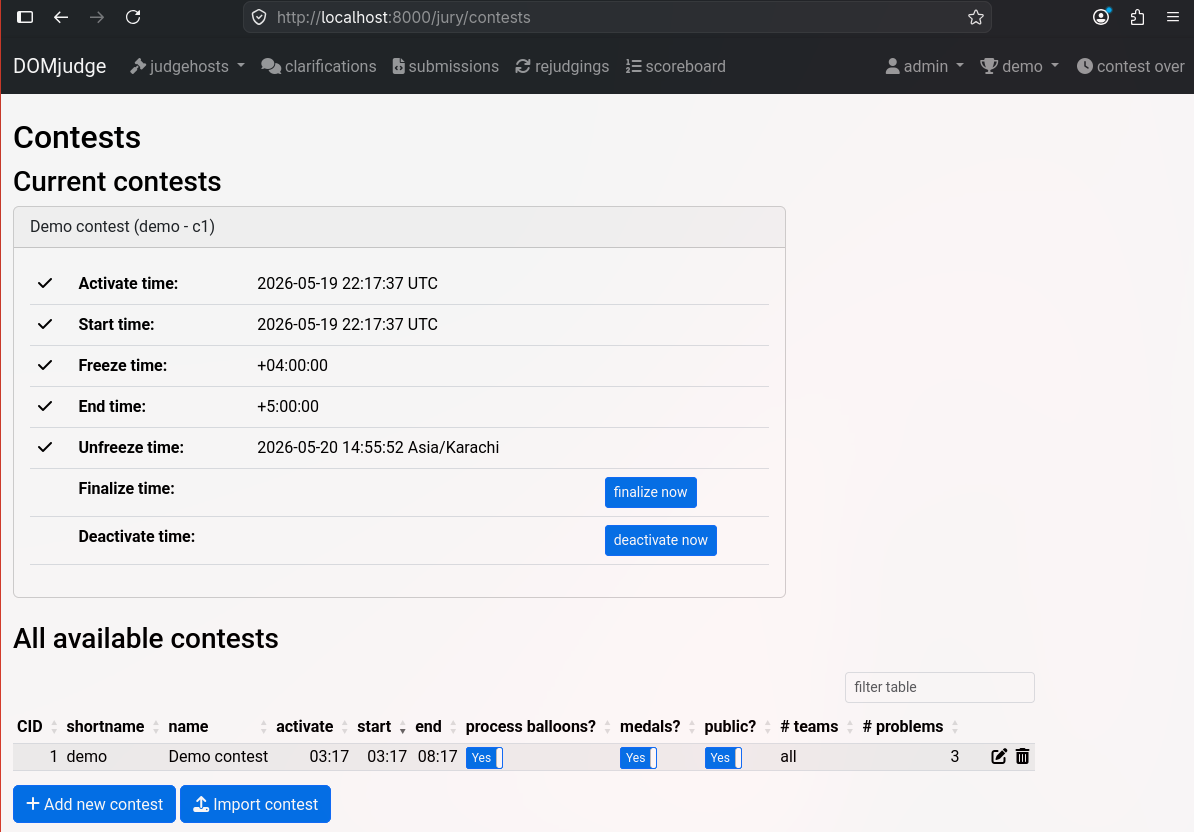
After importing, go to Jury -> Contests and confirm the displayed activate/start/end times are what you intended.
3. groups.json
Groups are categories that teams belong to. They are how you split a scoreboard into divisions - for example “Universities” vs “High Schools”, or “Seniors” vs “Juniors”. Teams in the same group compete against each other. You can also hide a group entirely from the public scoreboard if you have internal/test teams.It should be a JSON array with objects, each object should contain the following fields:
id: the category ID to use. Must be uniqueicpc_id(optional): an ID from an external system, e.g. from the ICPC CMS, may be emptyname:the name of the team category as shown on the scoreboardhidden(defaults to false): if true, teams in this category will not be shown on the scoreboardsortorder(defaults to 0): the sort order of the team category to use on the scoreboard. Categories with the same sortorder will be grouped together.
In the demo contest we use University category:
[
  {
    "id": "6",
    "name": "University",
    "hidden": false,
    "sortorder": 0,
    "color": "#00cc00"
  }
]
⚠️ IDs 1–5 are reserved
This is not documented anywhere officially but has shown up consistently across deployments - IDs 1 through 5 are used by DomJudge’s built-in system categories. You can see one of them in the Teams page: the DOMjudge team that sits in the “System” category. If you import a group with ID 1, 2, 3, 4, or 5, it either silently overwrites them.
Always start your group IDs from 6.
If your teams appear in the jury interface but not on the public scoreboard, the first thing to check is whether the group has
"hidden": trueor a conflicting ID.
4. organizations.json
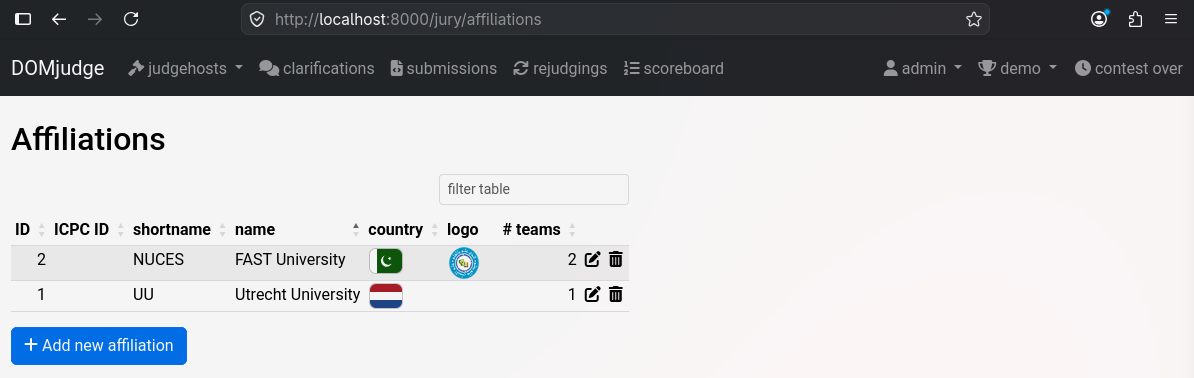
Affiliations are the universities or organizations that teams represent. They show as text next to team names on the scoreboard, with country flags when a country code is set.
Fields reference:
id: the affiliation ID. Must be uniqueicpc_id(optional): an ID from an external system, e.g. from the ICPC CMS, may be emptyname: the affiliation short name as used in the jury interface and certain exportsformal_name: the affiliation name as used on the scoreboardcountry: the country code in form of ISO 3166-1 alpha-3 (PAK,NLD,USA, etc.). DomJudge renders the flag automatically.
File:
[
  {
    "id": "NUCES",
    "name": "NUCES",
    "formal_name": "FAST National University of Computer and Emerging Sciences",
    "country": "PAK"
  },
  {
    "id": "UU",
    "name": "UU",
    "formal_name": "Utrecht University",
    "country": "NLD"
  }
]
Use string IDs like "NUCES" instead of numbers - self-documenting and avoids the reserved-ID issue.
5. teams.json
A team is the entity that appears on the scoreboard and submits code. Important: a team by itself cannot log in. It’s just a scoreboard record. It needs an account linked to it - that comes in the next section.
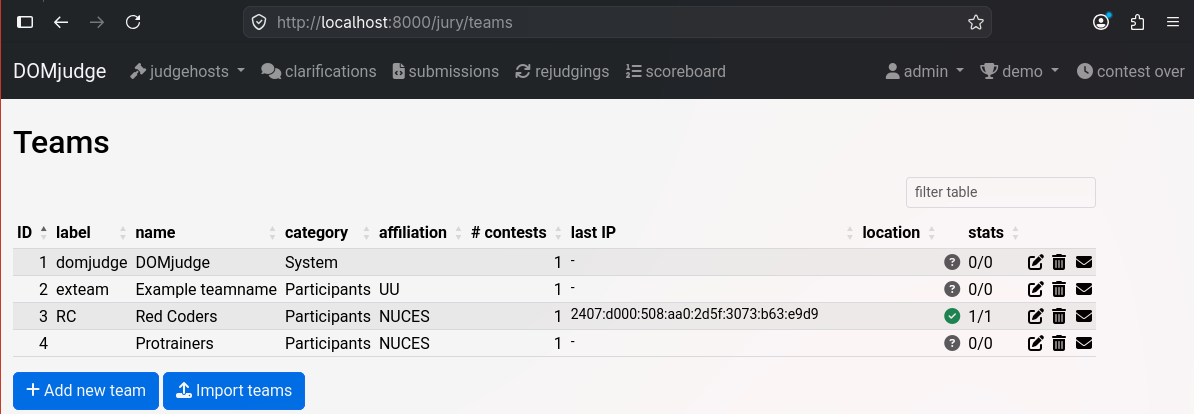
From the demo contest: Red Coders and Protrainers, both under NUCES, both in the Participants group:
[
  {
    "id": "3",
    "group_ids": ["6"],
    "name": "Red Coders",
    "display_name": "Red Coders",
    "organization_id": "NUCES"
  },
  {
    "id": "4",
    "group_ids": ["6"],
    "name": "Protrainers",
    "organization_id": "NUCES"
  }
]
Field reference
id: the team ID. Must be uniqueicpc_id(optional): an ID from an external system, e.g. from the ICPC CMS, may be emptylabel: (optional): the label, for example the seat numbergroup_ids: an array with one element: the category ID this team belongs toname: the team name as used in the web interfacemembers(optional): Members of the team as one long stringdisplay_name(optional): the team display name. If provided, will display this instead of the team name in certain places, like the scoreboardorganization_id: the ID of the team affiliation this team belongs tolocation.description(optional): the location of the team
The id field will be the ID used for the team and the
group_idsandorganization_idfields are the values as provided during the import of the other files listed above.
⚠️ IDs 1 and 2 are reserved
Team ID 1 is the built-in DOMjudge system team. Team ID 2 is exteam (the demo team). You can see both in the jury teams page. Start your custom teams from ID 3.
For larger contests (20+ teams) it’s worth starting from 100 - it’s immediately obvious which IDs are yours vs system.
6. accounts.json
Accounts are usernames and passwords. A team account links to exactly one team via team_id.
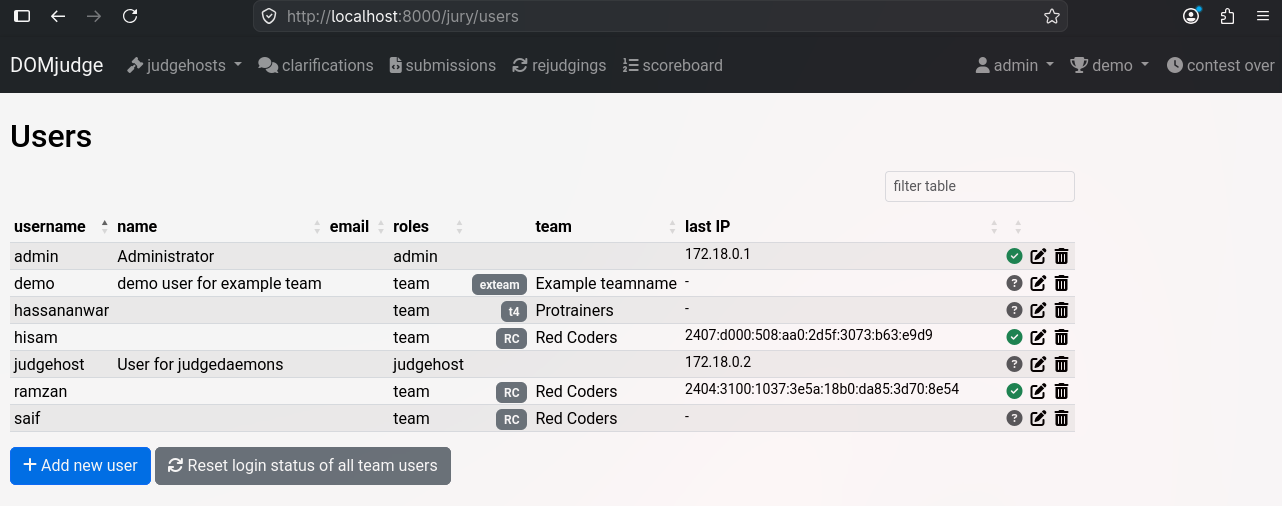
From the demo contest: ramzan, hisam, and saif all link to Red Coders (team ID 3). hassananwar links to Protrainers (team ID 4).
[
  {
    "type": "team",
    "username": "ramzan",
    "password": "ramzan_password",
    "team_id": "3",
    "name": "Ramzan"
  },
  {
    "type": "team",
    "username": "hisam",
    "password": "hisam_password",
    "team_id": "3",
    "name": "Hisam"
  },
  {
    "type": "team",
    "username": "saif",
    "password": "saif_password",
    "team_id": "3",
    "name": "Saif"
  },
  {
    "type": "team",
    "username": "hassananwar",
    "password": "hassan_password",
    "team_id": "4",
    "name": "Hassan Anwar"
  }
]
Field reference
id: the account ID. Must be uniqueusername: the account username. Must be uniquepassword: the password to use for the accounttype: the user type, one ofteam,judge,adminorballoon,jurywill be interpret as judgeteam_id: (optional) the ID of the team this account belongs toname: (optional) the full name of the accountip(optional): IP address to link to this account
The link that must match
 teams.json:    "id": "3"
 accounts.json: "team_id": "3"
both id and team_id must be same
offset of 3 or 5
If the exact team_id doesn’t work, then check the exact team_id using GUI on domjudge, as sometimes domjudge adds 3 or 5 to each team_id. like team Red Coders have team_id ‘3’, but it can be ‘6’ or ‘8’ on domjudge due to offset matching.
⚠️ User IDs 0–2 are reserved
Internal accounts (admin, judgehost, etc.) occupy IDs 0, 1, and 2. It’s good to start from 3 or 100.
7. Problems
problem.yaml
- id: hello
  label: A
  name: Helloo World
  color: "#32cd32"
  rgb: "#32cd32"
  timelimit: 1
import this file if you’re just uploading a single problem without any test cases and problem statement. Then you have to separately update these using GUI.
Generally, Problems are imported as ZIP archives instead of a single problem.yaml . DomJudge uses the ICPC Problem Package Format. Here’s the structure for the hello problem (Problem A):
hello/
├── problem.yaml            # required
├── domjudge-problem.ini    # DOMjudge-specific (optional)
├── problem_statement/      # required
│   └── problem.en.pdf
│   └── problem.en.tex
├── data/
│   ├── sample/             #optional
│   │   ├── 1.in
│   │   ├── 1.ans
│   │   └── 1.hint
│   └── secret/             # required
│       ├── 1.in
│       ├── 1.ans
│       ├── 2.in
│       └── 2.ans
├── submissions/            # required
│   ├── accepted/           # at least one required
│   │   └── solution.cpp
│   ├── wrong_answer/
│   │   └── brute.cpp
│   ├── time_limit_exceeded/
│   │   └── slow.cpp
│   └── run_time_error/
│       └── crash.cpp
└── input_validators/       # required
    └── validator.cpp       # exits 42 on valid, anything else = invalid
Use following problem.yaml if you’re about to archive the folder
problem.yaml
name: Hello World
author: System
source: Demo
rights_owner: System
license: cc0
type: pass-fail
limits:
  time_multiplier: 1
  time_safety_margin: 1.5
  memory: 256
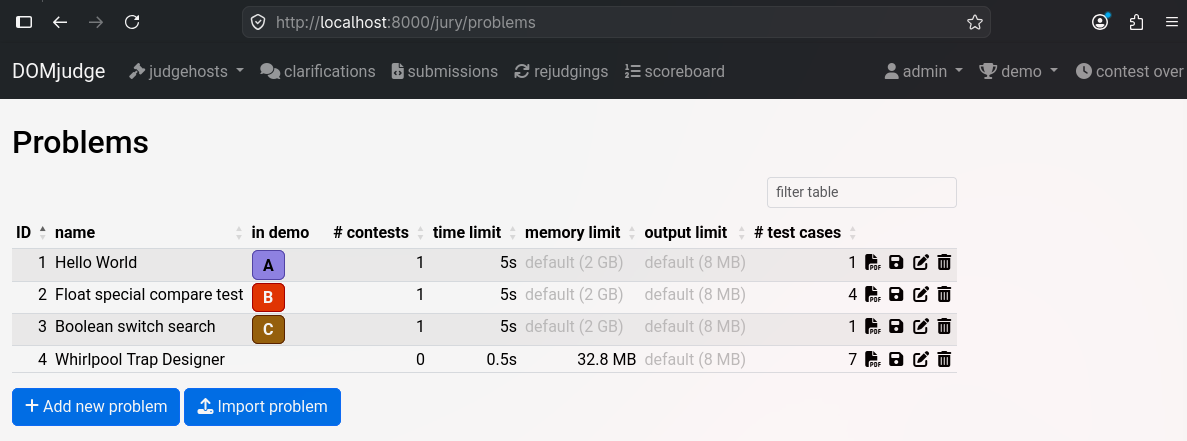
domjudge-problem.ini
name = Hello World
timelimit = 1
color = #FF7109
domjudge-problem.ini fields
name: the problem displayed nameallow_submit: whether to allow submissions to this problem, disabling this also makes the problem invisible to teams and publicallow_judge: whether to allow judging of this problemtimelimit: time limit in seconds per test casespecial_run: executable id of a special run scriptspecial_compare: executable id of a special compare scriptpoints: number of points for this problem (defaults to 1)color: CSS color specification for this problemexternalid: the external id of the problemshort-name: the short name of the problem
validator.cpp
#include<iostream>
#include<string>
#include<vector>

using namespace std;

void fail(const string& msg){
    cerr<<msg<<endl;
    exit(43);
}

int main(){
    string s;
    if(!(cin >> s)) fail("Empty input");

    if(s.length() < 1 || s.length() > 100) fail("Length constraint");

    // Check EOF
    string trash;
    if(cin >> trash) fail("Trailing garbage");

    return 42;
}
An input validator verifies that test case input files conform(comply) to the problem constraints before judging. An input validator verifies that test case input files conform to the problem constraints before judging. It reads from stdin and must exit with code 42 if the input is valid, or any other code (conventionally 43) if invalid.
This validator checks three things: that input is not empty, that the string length is between 1 and 100, and that there is no trailing garbage after the expected input. DOMjudge runs it against every .in file in data/sample/ and data/secret/ - if any validator fails, the test case is rejected.
Packaging
# From the root level
cd hello
zip -r ../hello.zip .
The ZIP filename becomes the problem’s external ID. hello.zip -> problem ID hello.
8. Importing everything
Two ways I’ll use to do this. Pick the one that fits your situation.
Method 1 - GUI (Jury -> Import / Export)
Easiest setup. Go to Jury -> Import / Export and follow this order:
Note: For groups, organizations, teams and accounts don’t select Import tab-separated as it requires .tsv files. Just select Import JSON/YAML
Follow steps 1 to 5 in order, then do either step 6 or 7. If you selected the step 6, then you need to upload test cases, etc separately.
| Step | File | Where |
|---|---|---|
| 1 | contest.yaml | Contest → Import JSON/YAML → select and Import |
| 2 | groups.json | Teams & groups → Import JSON/YAML → Type:groups → select and Import |
| 3 | organizations.json | Teams & groups → Import JSON/YAML → Type:organizations → select and Import |
| 4 | teams.json | Teams & groups → Import JSON/YAML → Type:teams → select and Import |
| 5 | accounts.json | Teams & groups → Import JSON/YAML → Type:accounts → select and Import |
| 6 | problems.yaml | Problems → Import JSON/YAML → Select contest and then Import |
| 7 | hello.zip | Problems → Import archive → select your contest, or Do not add/update contest data → select and Import problem |
Method 2 - import-contest (one shot)
DomJudge ships a script that runs all the imports in the correct order automatically. If your directory has the standard layout, this is the cleanest approach, but problem.zip still needed to upload separately as import-contest handles metadata only:
demo-contest/
├── contest.yaml
├── groups.json
├── organizations.json
├── teams.json
├── accounts.json
└── problems.yaml
Make sure team IDs in accounts.json match teams.json and also check team_id’s on domjudge due to offset issue
# Copy the directory in
docker cp demo-contest/ domserver:/tmp/demo-contest/

# Run the all-in-one import
docker exec -it domserver bash -c "
  cd /tmp/demo-contest && \
  /opt/domjudge/domserver/bin/import-contest
"

> Answer `y` to everything in order
Note: DOMjudge auto-increments team IDs regardless of what
idyou set inteams.json, so the “confirm team ID” step is always necessary if accounts import fails - you can’t predict the IDs in advance.
# If anything fails like `accounts.json`, then run following commands:

# recopy that file
docker cp demo-contest/accounts.json domserver:/tmp/demo-contest/accounts.json

# confirm team ID assigned by DOMjudge and then make sure `accounts.json id's` match `teams.json`
docker exec domserver \
  /opt/domjudge/domserver/webapp/bin/console \
  api:call teams | python3 -m json.tool | grep -E '"id"|"name"'

# then run import, but anwer 'N' to those fields that you already did 'y'. Just 'y' to accounts.json field and fields after it.
docker exec -it domserver bash -c "
  cd /tmp/demo-contest && \
  /opt/domjudge/domserver/bin/import-contest
"
Problem ZIPs still need to be imported separately (GUI step 7) - as import-contest handles metadata only.
9. Dry run checklist
Before you announce the URL to participants, go through this:
Judgehosts
- Jury → Judgehosts -
judgehost-0has a green tick andlast judgingis updating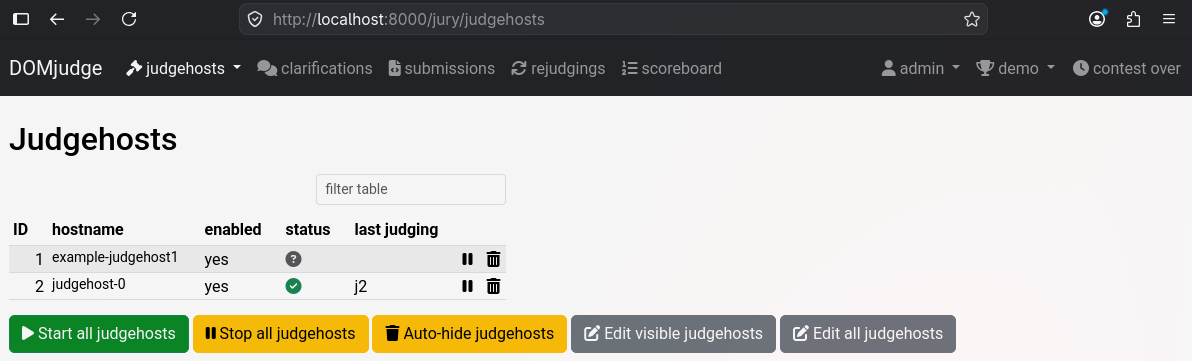
Contest
- Jury → Contests - start/end times match your local timezone
- Freeze time is set correctly (you want the last N minutes hidden, not the first N)
- All problems appear with correct labels A, B, C…
End-to-end test
- Log in as a team account at
http://localhost:8000/team - Submit the hello problem with this:
#include<iostream> #include<string> using namespace std; int main(){ string s; cin>>s; cout<<"Hello "<<s<<"!"<<endl; } - Verdict comes back
CORRECTwithin ~30 seconds - The team appears on the scoreboard with 1 solve
Config Checker
- Jury sidebar -> Config checker - no red errors. A “no active contest” warning is normal if the contest hasn’t started yet.
10. Going live with Cloudflare Tunnel
Once everything works locally you’ll want teams to connect from outside. The cleanest way to do this without exposing your machine directly or setting up a reverse proxy is Cloudflare Tunnel.
Install cloudflared
# Download and install
curl -L https://github.com/cloudflare/cloudflared/releases/latest/download/cloudflared-linux-amd64.deb -o cloudflared.deb
sudo dpkg -i cloudflared.deb
Quick tunnel (no account needed - temporary URL)
Good for a quick test or a single session:
cloudflared tunnel --url http://localhost:8000 # keep this running in a terminal or run it in background or in tmux session then extract link using PID
This prints a randomly generated URL like https://some-random-words.trycloudflare.com. Share that with teams. The tunnel lives as long as the process runs.